Create a trajectory list box
The Project shows the project tree with all the objects in a Kanzi project. Project tree is organized into Screen and Prefabs that contain 2D and 3D objects and scenes. Project along with the project resources shown in the Library, define the application you can see in the Preview.
Each object has properties that define it. In the Properties you can modify, add, and remove object properties:
- Modifying object properties changes the way objects look and behave.
- Adding properties to object expands the functionality of objects.
When you need a brief explanation on what a specific property does, move your mouse pointer over the name of that property.
In this step you first create a trajectory list box, then you modify it by editing its properties.
Create a trajectory list box and organize the scene
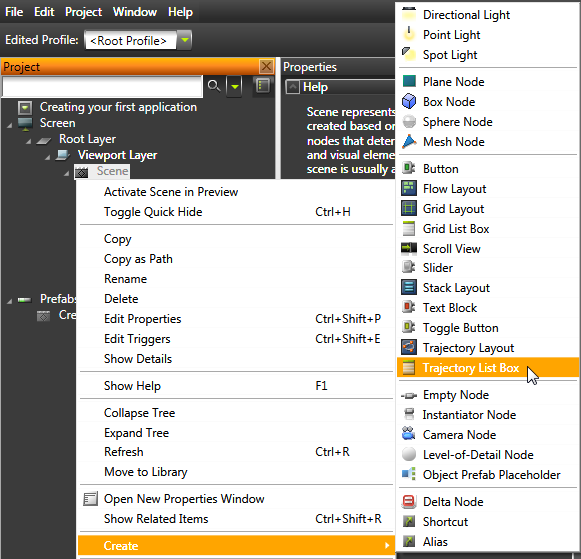
- In the Project right-click Scene and select Create > Trajectory List Box to create the trajectory list box for the rotating user interface.
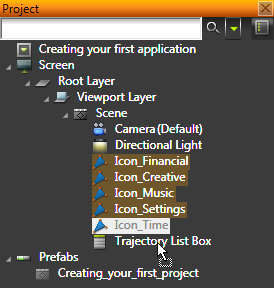
- Select all objects you imported, and drag and drop them to the trajectory list box.
Modify the trajectory list box
To modify the trajectory list box edit its properties:
-
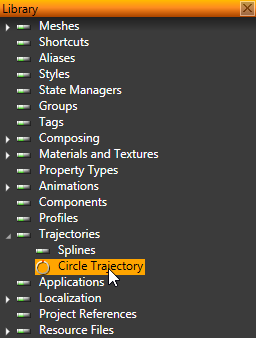
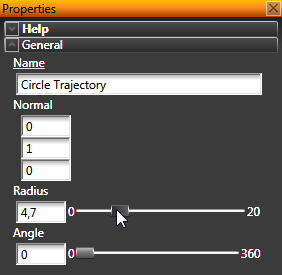
In the Library select Trajectories > Circle Trajectory and in the Properties adjust the Radius slider until all the icons comfortably fit into the trajectory list box.
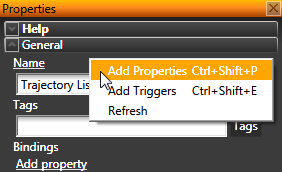
- In the Project select Scene > Trajectory List Box, right-click in the Properties, and select Add Properties.
Add Properties window opens.
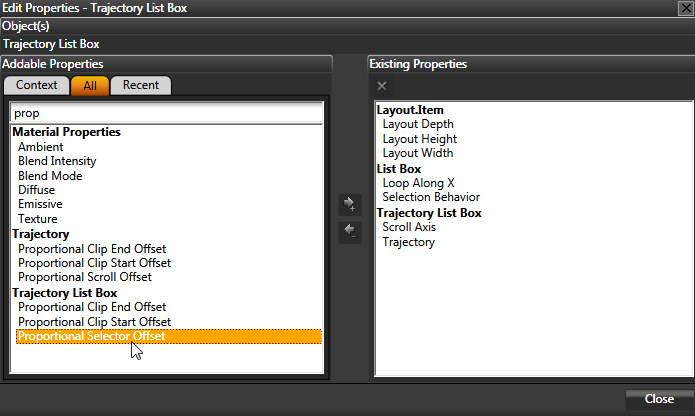
- Find the Proportional Selector Offset property in the left pane, and double-click the property to add it to the trajectory list box.
To find the property faster type the first few letters of the property name in the search box.
Once you add a property, it is listed in the right pane of the Add Properties window.
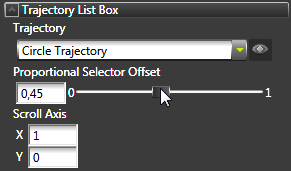
- In the Properties adjust the slider of the Proportional Selector Offset property until one of the objects is right in front.
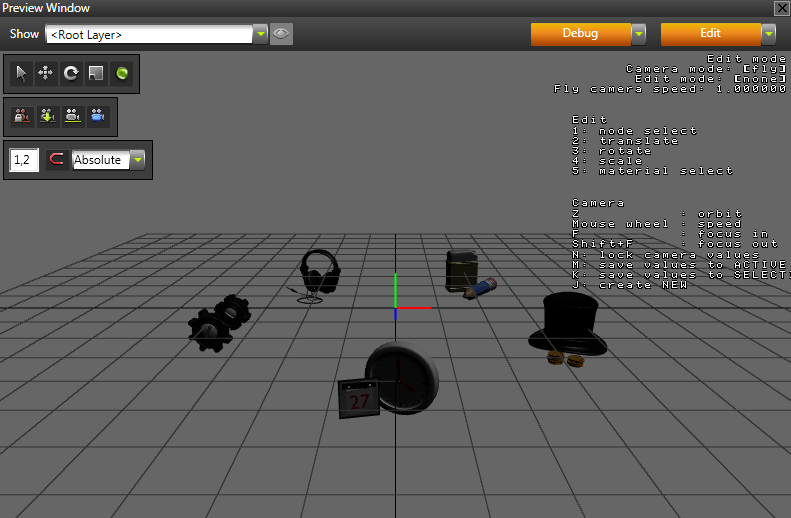
You can now see the imported objects in the trajectory list box.
< PREVIOUS STEP
NEXT STEP >
See also
To find out more about Trajectory List Box, see Using trajectory list boxes.
To learn more about properties in Kanzi, see Property system.
To find out more about the Preview, see Preview.
To find out more about different Kanzi Studio objects, see Working with ....
Open topic with navigation